
Step 6 – Adding a bottom row of modules to your Joomla Template.
This is essentially a repeat of step 4. Much of that tutorial will apply, as far as adding modules to the bottom row positions and styling them, only this time just by using Template Creator CK’s dashboard.
I’ll add a border with rounded corners for each module and add some margins to both the module and it’s wrapper.
For this section that we will make for the Joomla Template, I will use the module positions to display key members of staff. I’ll use images of 300px x 300px as before, this time though I will add a border to the module and some text below the image. This will be done via the custom module.
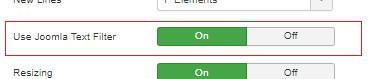
** Tip: Activate Joomla’s text filter in your editors settings to stop Joomla stripping out your HTML from custom modules and articles.
Adding boarders to a module with Template Creator CK
From Template Creator CK’s dashboard, select the pen icon from the orange toolbar for the module in question. From the options on the left side, select ‘block – borders’, in the tab that opens you can apply your styles for the individual module. In the Joomla Template we are making I set the color to black, the width of the border to 1px and made it a solid border on all four sides. I then added a 5px radius to each corner. You can see how I set the options in the image below.

I also added a 10px margin to each module and an extra top and bottom margin to the wrapper for the module row.
I then added some simple HTML to the four custom modules I created for this row of modules. If you want to, you could add links to the elements within the module to open other pages or websites. I also added a Facebook and Twitter icon from the Font Awesome library.

Once you have finished and saved your work, check your progress on the front end. If you have followed my example in making this Joomla Template your example should look similar to mine.

Up to this point your time investment in your project should be around 3 hours, although with practice and simple CSS changes, this could be reduced quite a lot.
Remember, the end result will be a Joomla Template that is lightweight* and free of bloat, Google will love you.
In the next chapter we'll add a Call To Action button in its own full width row, so read on.